


Choose your device
Choose your operating system. Names and menu locations can vary slightly by version and manufacturer.
Step by step
01
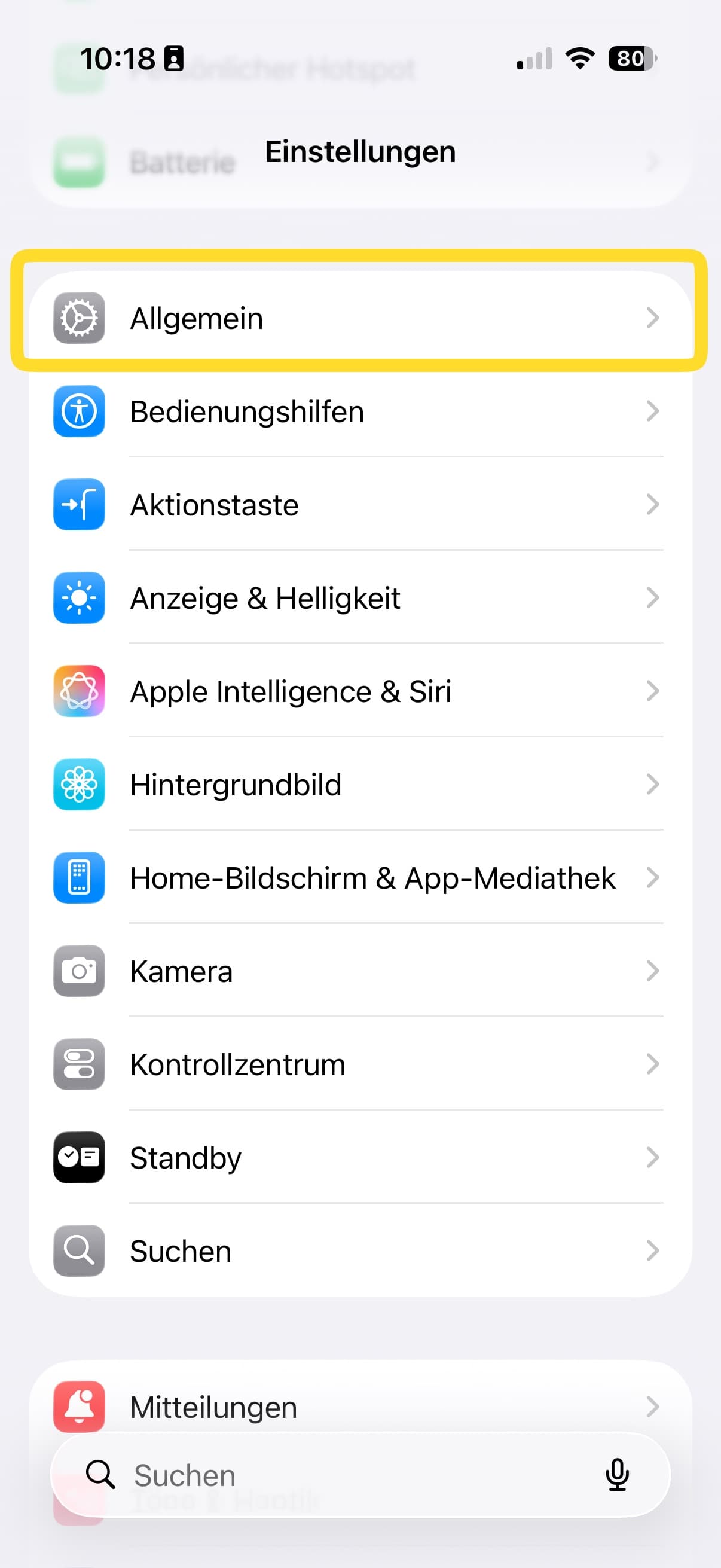
Open General in Settings
Open the Settings app, then tap General.
02
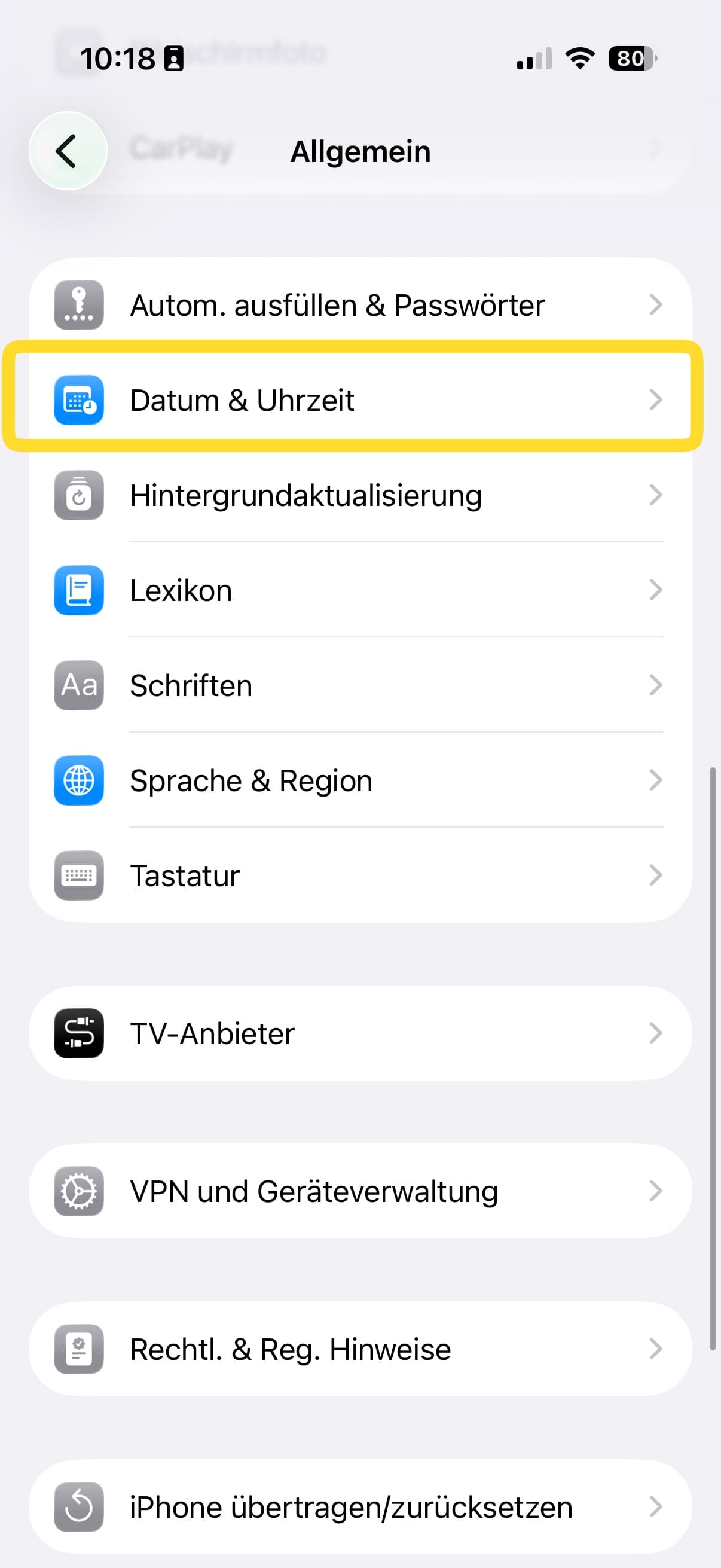
Choose Date & Time
Scroll through General and open Date & Time.
03
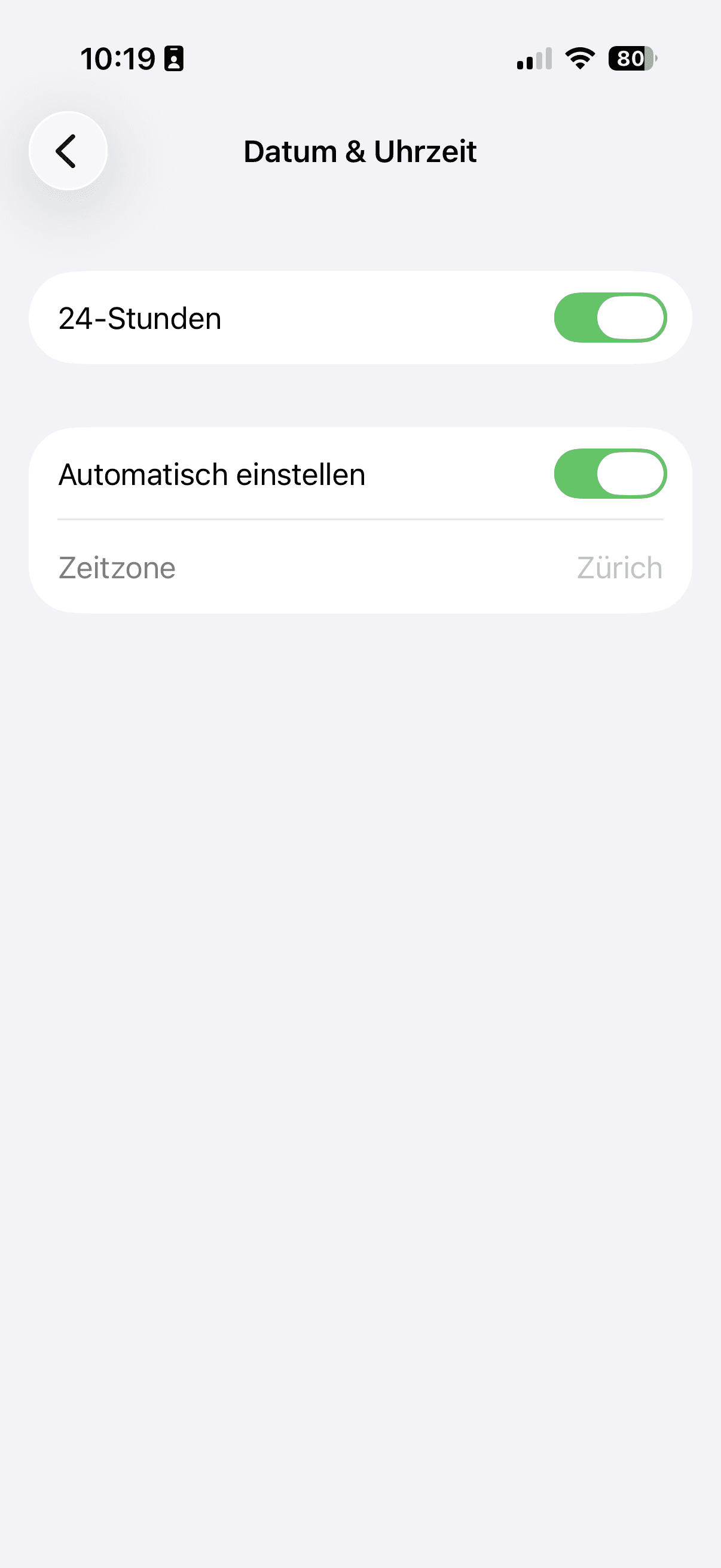
Enable Set Automatically
Turn on Set Automatically. For iPhone to detect the time zone at your current location, Setting Time Zone must also be enabled under Privacy & Security → Location Services → System Services.
Done – your device now manages its time automatically
Reopen the affected app or web page and verify the timestamp. With automatic time-zone detection and the required location service enabled, your device will adjust its time zone when you travel or clocks change.
If the time is still incorrect
- Search Settings for “Date & time” if the menu path looks different on your device.
- On iPhone and iPad, check that Setting Time Zone is enabled under Privacy & Security → Location Services → System Services.
- Check your internet or mobile connection, then reopen the affected app.
- If the automatic option is unavailable, Screen Time, device management or a work profile may restrict it. Contact your administrator in that case.
- Restart the device after a system update, then verify the displayed time zone again.